Hey @pugpack33 - thanks for reaching out.
Your intuition was correct, everything you did was almost on point. As @qna mentioned though, Google is not as user friendly as iOS in this case, and the way to recover from your Magic Backups using Android AutoBackups is doing a full phone restore during phone onboarding. Like, the first time you turn on the new phone.
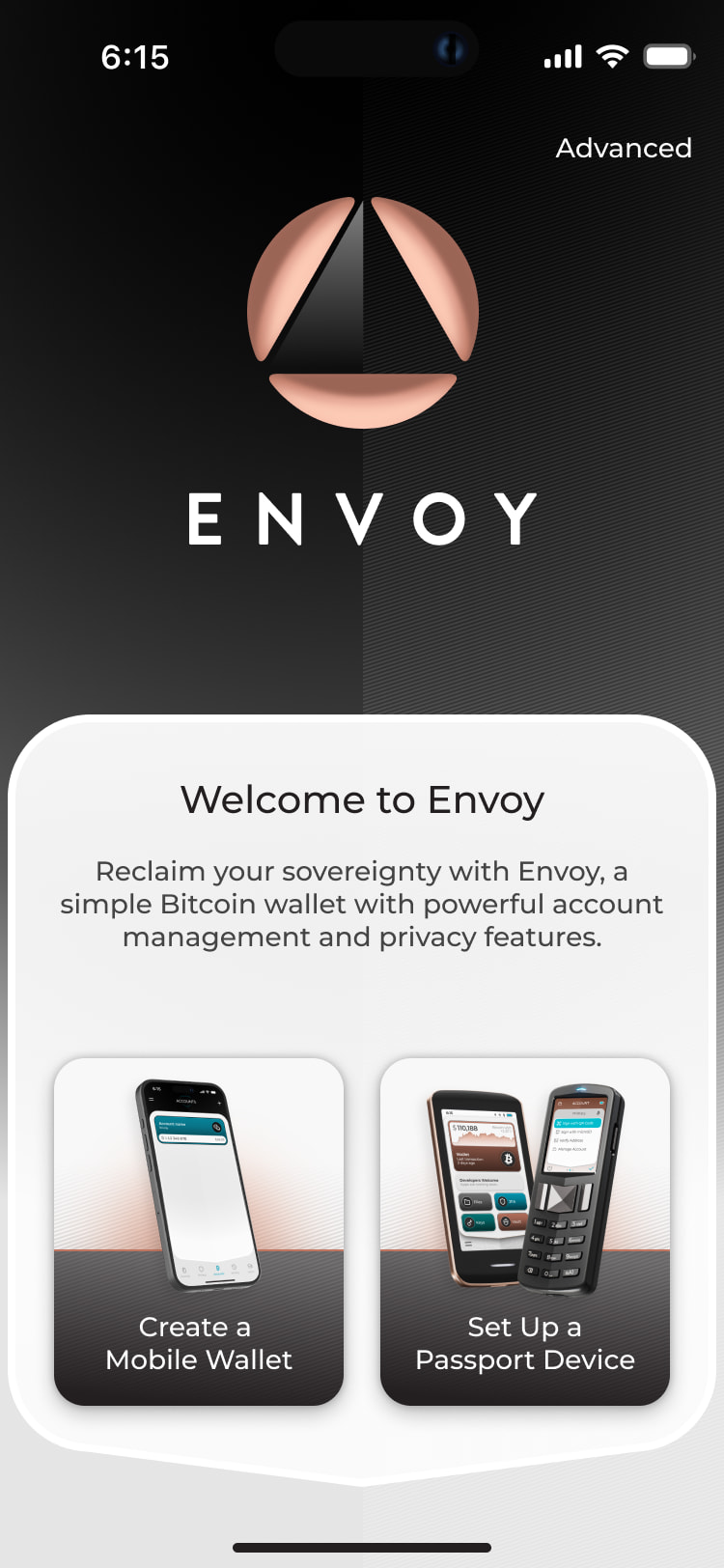
If you have access to both phones however, I think the easiest thing is to do the second thing you tried, exporting the old phone’s hot wallet seed via QR and importing on the new one. You did every step correctly, except that since Envoy can only have one hot wallet at a time, you need to import that QR during Envoy setup, not after you already created a new hot wallet (hence your inability to find “Set Up Envoy Wallet”). To your point as well, the docs are slightly out of of date, as the button now reads “Create a Mobile Wallet”, so that 100% is our fault - we will update that asap.
As for the passphrase - it is indeed a known issue. Current workaround is described here in full detail On Passport Prime I setup up Passphrase wallets too many times archived deleted and tried to reset - #8 by Jack, but I will bundle it in the steps for you to follow below.
Here is what I would do in your case:
[Passphrase workaround fix]
- In Passport Prime go to settings → Connected to Envoy → Disconnect from Envoy
- On S21 old phone, go to Envoy, tap the Devices tab, tap the Passport Prime, tap the top right corner three dots, tap Unpair Passport.
- Now both have forgotten about each other. To make sure there’s no residual bluetooth connectivity, kill the Envoy app, make sure Passport Prime shows the static QR.
- In Envoy, tap the “+” icon on the top right corner of the Devices or Accounts view, and scan the static qr, then the dynamic QR - essentially, pair them again
- Opening the Bitcoin Wallet app and applying a passhprase in Passport Prime should now display the accounts in Envoy
[Backup fix]
-
After doing the above, in the S21 old phone go to Envoy Settings, Backups, and tap Back up now
-
Turn Bluetooth off in the old S21 so Passport Prime doesn’t go crazy, and turn it on in the S26 new phone
-
In the S26 new phone we need a brand new install of Envoy, so if you don’t have any funds there, you can either go to settings → backups → erase wallet and backups, or you can clear Envoy’s data or uninstall and reinstall Envoy. All these should take you to a new Envoy onboaridng flow.
-
In the S26 new envoy instance, tap Create a Mobile Wallet
-
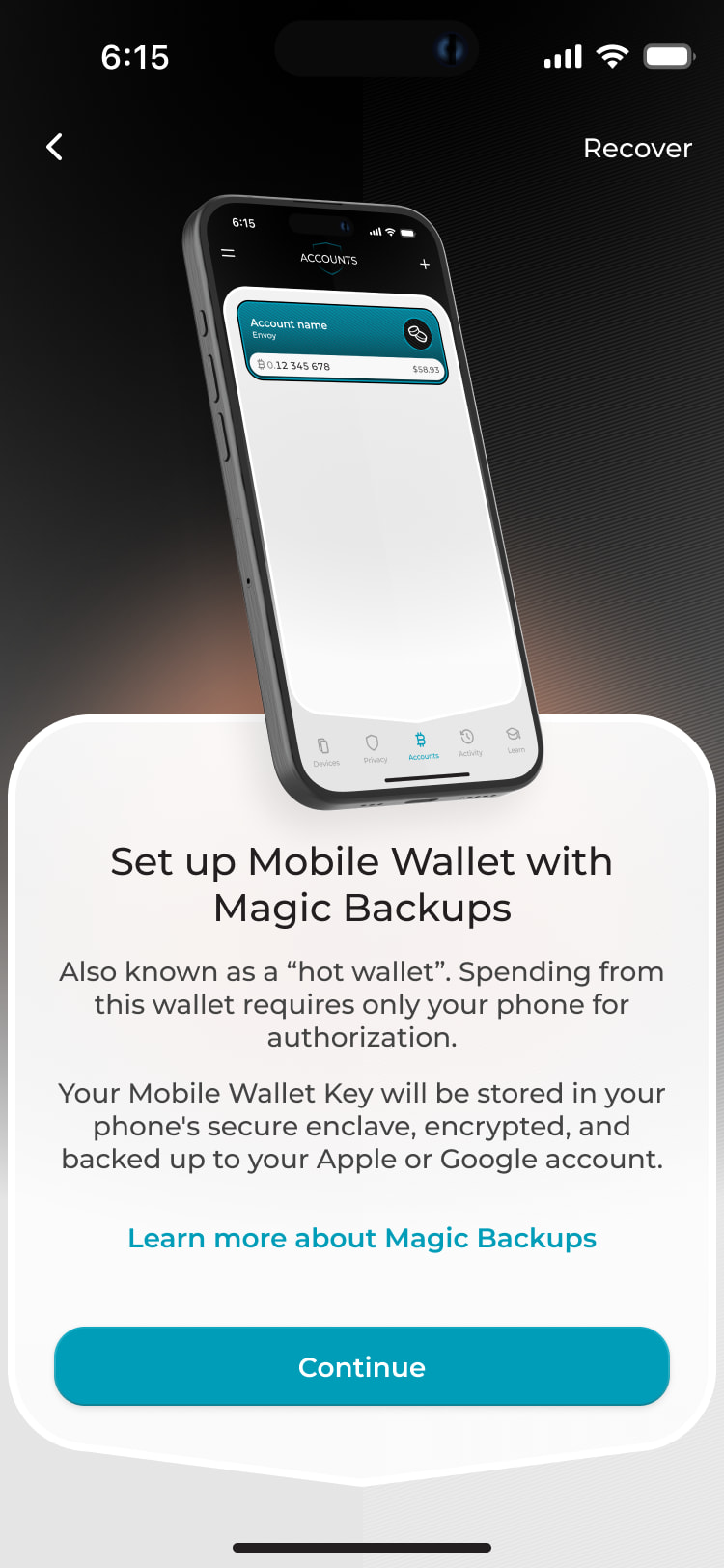
In the next screen, tap the top right corner “Restore” button. This will open the camera scanner.
-
In the S21 old phone, go to Settings->Backups->Advanced Backups->View Mobile Wallet Seed, and scan the qr displayed on the S21 with the S26
-
This should immediately import the hot wallet seed to the S26, the S26 will hash it, ask Foundation servers if there’s something matching that hash, Foundation servers will find the encrypted blob created on step 6, send it to the S26, and the new phone will be able to decrypt it with the hot wallet seed it just imported.
-
You should be asked right away to enable bluetooth permissions, and this should just work with Passport Prime (you can check if QuantumLink status on the device in the new phone says “Active”). If for whatever reason it dfoesn’t, you can always repeat steps 1-5 on the new phone and you should be good to go!
Keep in mind however, that you now have two “live” instances overwriting the same Magic Backup (same hot wallet seed = same magic backup), so if you use the old instance a lot (create new tags, labels, accounts, rnemae stuff), you might want to re-do all these steps on the new phone right before you switch, as currently the only way to import backups is during onboarding setup.
Hope this helps!