@sidblaq thank you for the detailed repsonse. It sounds like you don’t see your Passport Prime accounts in Envoy at all, not the passphrased ones and not the default ones, which points to pairing issue.
Let’s try reconnecting and resurfacing the passphrased account at the same time, please follow these steps:
-
Make sure Envoy and Passport Prime forget about each other: In Envoy go to the Devices tab, select Passport Prime (you only have one, right?), and on the top right corner tap the three dots, then “Unpair Passport” and proceed with the unpairing.
-
In Passport Prime, go to Settings and tap the first box that Says “Connected to Envoy” or “Disconnected from Envoy” or similar, then tap the button at the bottom that says “Disconnect from Envoy” and proceed weith the disconnection. This should show a STATIC QR code. If it shows a dynamic QR close the Envoy app.
-
Now the devices have forgotten about each other. Let’s resurface the account with funds. In Passport Prime, head to the Bitcoin Wallet app. Tap the three dots on the top right corner and tap apply passphrase. Type the passphrase you used before.
- Are you asked to enter a name for account#0? If yes, please do so (this means that it is automatically resurfacing the account you archived and deleted). If no, that’s ok, it means you have accounts enabled or archived in that passphrase, continue.
Now your path might diverge based on your previous actions:
- How many accounts do you see under the Passphrase tab? It’s possible you don’t see anything, this means all your accounts for this passphrase have been archived.
- Tap the top right corner three dots, then tap View Archive. Do you see any accounts here? If so, click each one of them and tap Restore. When you have done this for all acounts, tap the top left corner back button to exit the archive and you should be taken back to the main wallet, where you should see the account(s) in the Passphrase tab in Passport Prime.
-
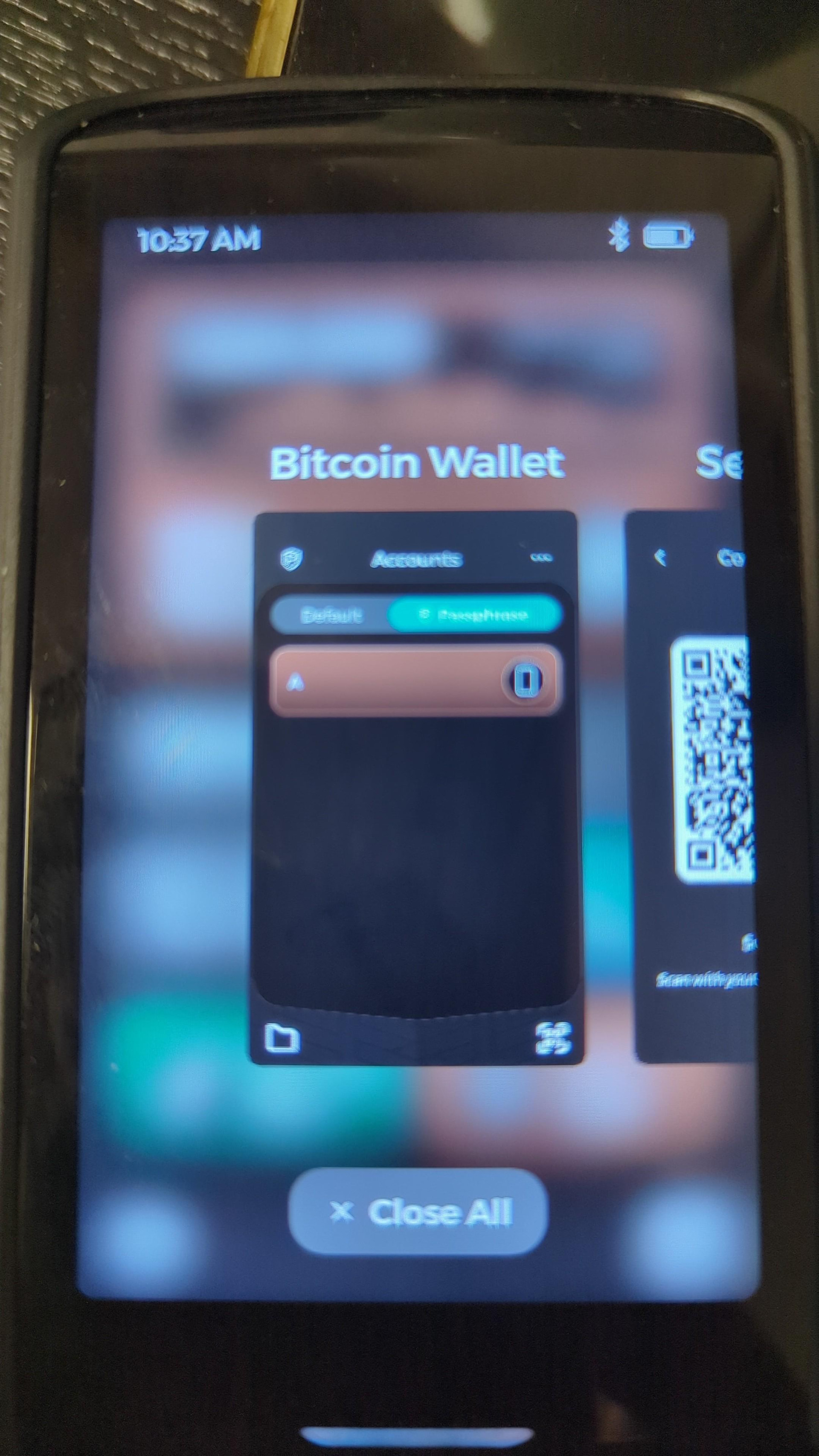
Before continuing, let’s kill the Bitcoin Wallet app. Tap the home button on Passport Prime, and without lifting your finger, slide it up towards the screen. Kind of like you would do on an Android or iphone to kill any app. You should see something like the screen below. Tap Close All.
-
Now that Accounts are resufraced in passport Prime and the app is closed, let’s re-pair to Envoy. From Passport Prime’s home screen, go to settgins (bottom left two lines in the home screen) and tap the first line “Envoy not connected”. This should show a STATIC QR code.
-
In Envoy, go to Accounts, and tap the top right corner “+” icon. Scan the static QR in Passport Prime, and proceed with the flow. Then scan the dynamic QR from passport prime until both are successfully paired.
-
In Envoy go to Devices, tap Passport Prime, and see that the QuantumLink connection says Active. After confirming this, go to the Accounts view in Envoy.
-
In Passport Prime, tap the home button to go back to the home screen, and tap the bitcoin wallet app to open it. This should beam all the Default accounts over to Envoy. Then tap the top right corner three dots, and add the passphrase. This should beam all the passphrase accounts over to Envoy, and you should now be able to see the pill in Envoy.
Please follow these steps in order and without skipping anything, then report back if you have any problems with what step was the problematic one for you.
Appreciate the patience!