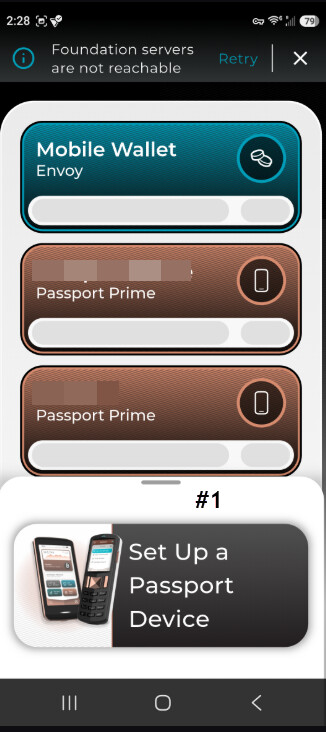
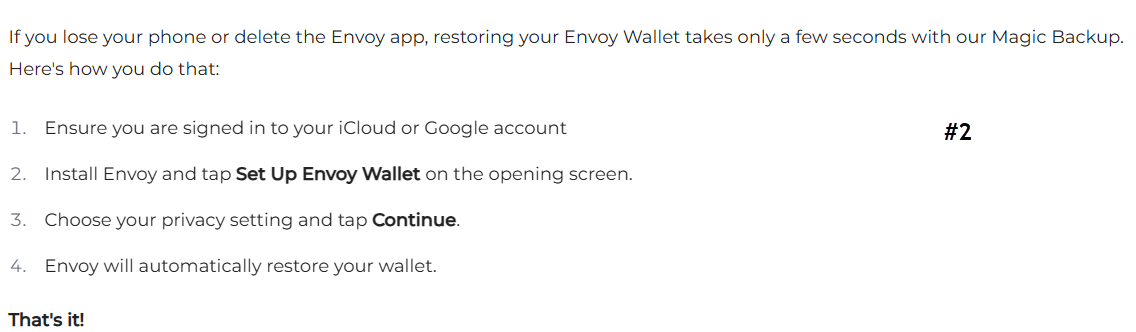
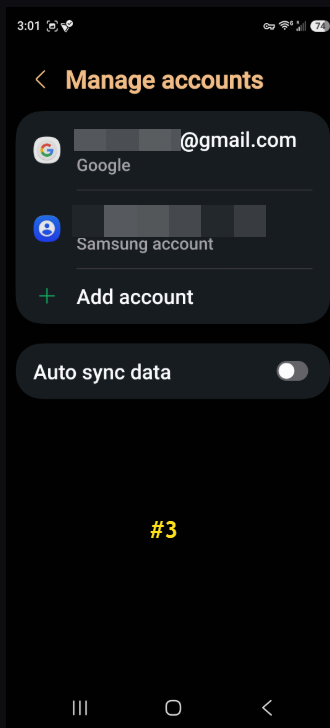
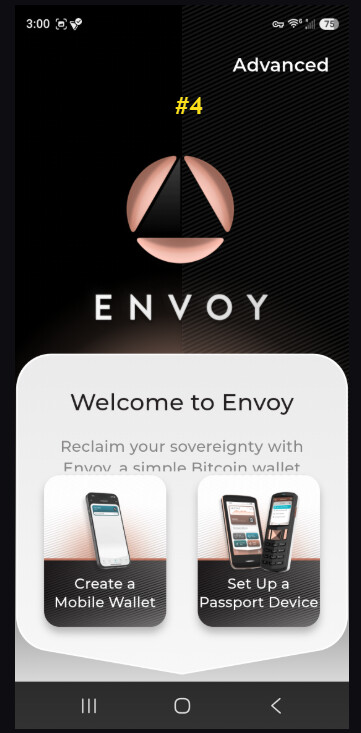
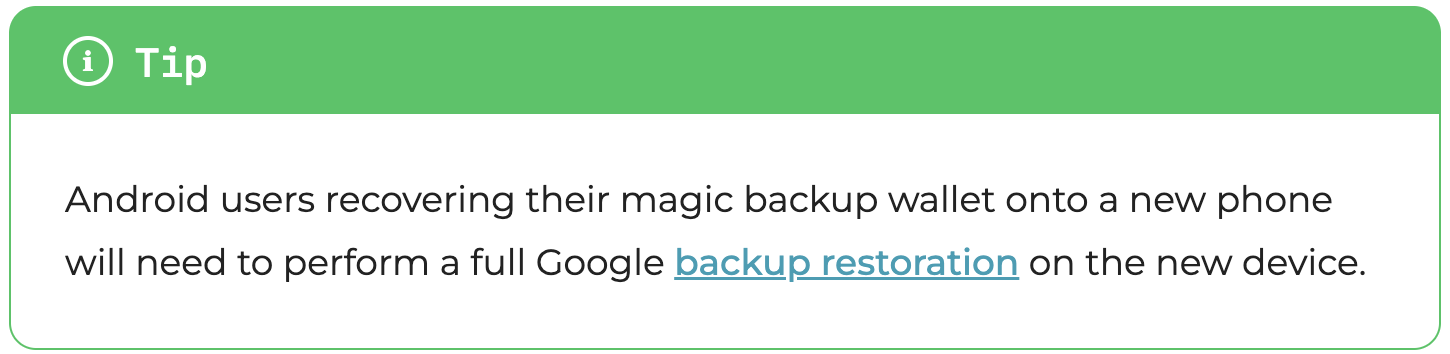
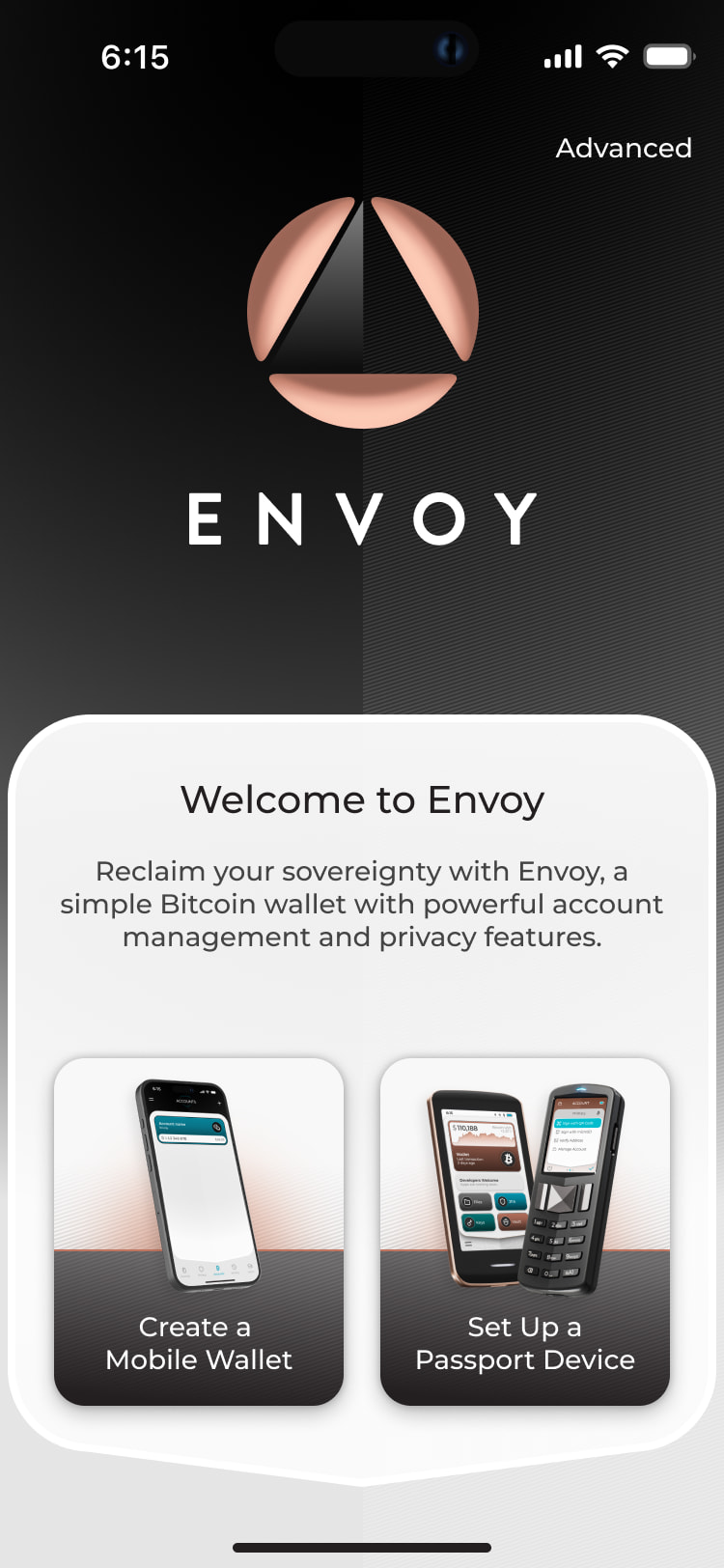
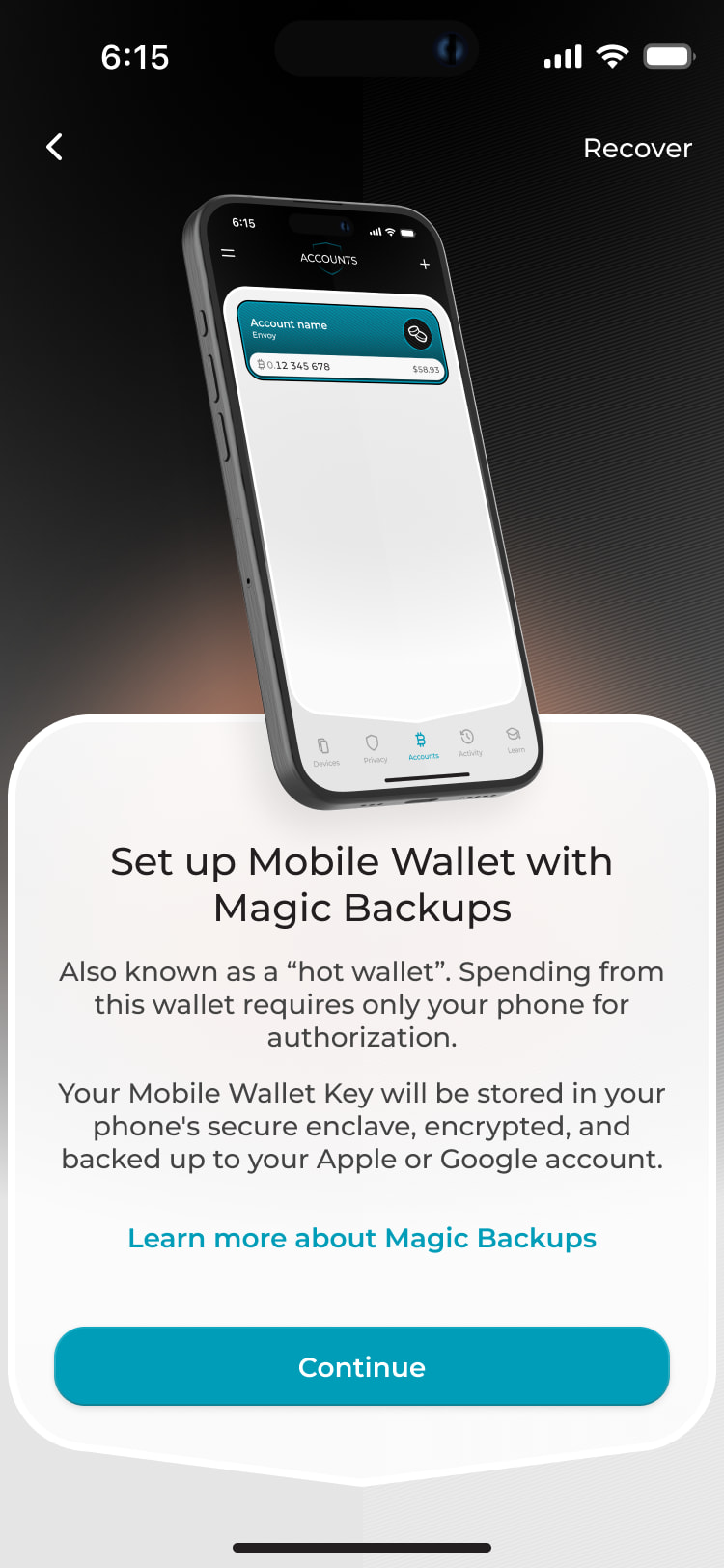
I recently upgraded my Samsung S21 phone to a Samsung 26+ with Android. I transferred data to the new phone using Smart Switch. First go around I opened Envoy and after deleting QL from old S21, I created a NEW QL to Prime (#1). The 2 accounts showed (#1) but when I entered my Passphrase on Prime those accounts did NOT show in Envoy (the QL link was ACTIVE). So I uninstalled, restarted, and re-installed Envoy on the new S26+ looking forward to easy transition from the S21 (FYI - If anyone reading this has an Android phone that is NO longer able to update to the May 26 patch you are open to a Zero-click vulnerability - CVE-2026-21022: Samsung Android Information Disclosure Flaw). Following the FAQ 4 easy steps (#2). For review, Step 1 is to ensure I was signed in to my google account - check (#3). Step 2 - Install Envoy - check (#4). #4 is the opening screen after install, the second part of Step 2 (#2) is “tap Set Up Envoy Wallet on the opening screen”. The opening screen has 2 choices (not including Advanced on top) - “Create a Mobile Wallet” and “Set Up a Passport Device”, so which is it? I tried both but neither restored Envoy to the state that exists on my S21 which also has dormant wallets from an early version of Passport. But since I do not have a plan for using it right now, it can sit in its box, and I can always add as a new device later.
I am going to digress a minute, first note the top of #1(servers unavailable note), I am not sure why that is and perhaps it had something to do with not automatically detecting the fact that Envoy on the S21 had Magic BU enabled. I was a little concerned as I did not want to overwrite my backup that I just verified so I did not pursue this error as I have seen it before on the old phone, and I have begun to accumulate a lot of 2FA codes. That is when I figured I could manually restore. I have a backup of the envoy_backup.mla.txt and my settings.tar file, but no where in the documentation nor any screens within envoy discuss how or where to use these backup files. If direction is provided it is not easily found.
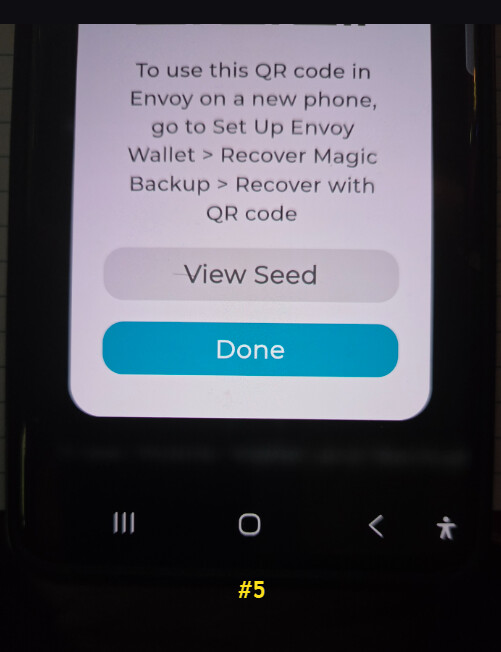
Lastly, I thought I would try one more thing. I opened the envoy on my S21, opened the menu, then Backups, then opened Advanced Backups, then opened View Mobile Wallet Seed to get a QR code and tried to read from Envoy on the S26, as per the directions under the QR code (#5). Again I was directed to click on “Set Up Envoy Wallet”, I do not see those words anywhere, unfortunately the QR code was not recognizable when I tried to read it with the S26.
I never had any activity in the Hot Wallet on the old S21, so creating a new Mobile Wallet does not seem like it would matter, but I am not sure why after creating the QL with Prime, then entering my passphrase that those wallets did NOT appear in Envoy? This restoration seems like it should be easy but for some reason the process is not seem that intuitive. Any guidance would be appreciated. Thanks
The passphrase display bug is a known issue in Envoy that is fixed in 2.3.0. There is a known user flow that reliably has them show even before the fix is released, so I’m paging @Jack to remind me what that is.
Lastly about the manual import, you won’t see that option if the new device already has a mobile wallet active, which is appears to from your screenshot. Envoy only allows for one mobile wallet for now.
Your intuition was correct, everything you did was almost on point. As @qna mentioned though, Google is not as user friendly as iOS in this case, and the way to recover from your Magic Backups using Android AutoBackups is doing a full phone restore during phone onboarding. Like, the first time you turn on the new phone.
If you have access to both phones however, I think the easiest thing is to do the second thing you tried, exporting the old phone’s hot wallet seed via QR and importing on the new one. You did every step correctly, except that since Envoy can only have one hot wallet at a time, you need to import that QR during Envoy setup, not after you already created a new hot wallet (hence your inability to find “Set Up Envoy Wallet”). To your point as well, the docs are slightly out of of date, as the button now reads “Create a Mobile Wallet”, so that 100% is our fault - we will update that asap.
In Passport Prime go to settings → Connected to Envoy → Disconnect from Envoy
On S21 old phone, go to Envoy, tap the Devices tab, tap the Passport Prime, tap the top right corner three dots, tap Unpair Passport.
Now both have forgotten about each other. To make sure there’s no residual bluetooth connectivity, kill the Envoy app, make sure Passport Prime shows the static QR.
In Envoy, tap the “+” icon on the top right corner of the Devices or Accounts view, and scan the static qr, then the dynamic QR - essentially, pair them again
Opening the Bitcoin Wallet app and applying a passhprase in Passport Prime should now display the accounts in Envoy
[Backup fix]
After doing the above, in the S21 old phone go to Envoy Settings, Backups, and tap Back up now
Turn Bluetooth off in the old S21 so Passport Prime doesn’t go crazy, and turn it on in the S26 new phone
In the S26 new phone we need a brand new install of Envoy, so if you don’t have any funds there, you can either go to settings → backups → erase wallet and backups, or you can clear Envoy’s data or uninstall and reinstall Envoy. All these should take you to a new Envoy onboaridng flow.
In the S26 new envoy instance, tap Create a Mobile Wallet
In the S21 old phone, go to Settings->Backups->Advanced Backups->View Mobile Wallet Seed, and scan the qr displayed on the S21 with the S26
This should immediately import the hot wallet seed to the S26, the S26 will hash it, ask Foundation servers if there’s something matching that hash, Foundation servers will find the encrypted blob created on step 6, send it to the S26, and the new phone will be able to decrypt it with the hot wallet seed it just imported.
You should be asked right away to enable bluetooth permissions, and this should just work with Passport Prime (you can check if QuantumLink status on the device in the new phone says “Active”). If for whatever reason it dfoesn’t, you can always repeat steps 1-5 on the new phone and you should be good to go!
Keep in mind however, that you now have two “live” instances overwriting the same Magic Backup (same hot wallet seed = same magic backup), so if you use the old instance a lot (create new tags, labels, accounts, rnemae stuff), you might want to re-do all these steps on the new phone right before you switch, as currently the only way to import backups is during onboarding setup.
Thank you both the clarification. I will give this a go later today. Before I begin, I want to confirm if other than the phone being logged into the google account, are there any other settings that needto be enabled? Such as “Auto sync data” as per #3 above? Since being hacked last year I do not use this google account anymore other than pass through (any email is forwarded to proton, then deleted), I do not “intentionally” save anything in google, nor do I use it to log into anything. Unfortunately, like Magic backups I have other apps that require a google account. The Zero click vulnerability and the inability to upgrade the latest android patch freeked me out a bit. I put a data only esim (roamless), ported my old number to voip and only associate this old number with this S26 phone. I know I have seen before but not sure where, but how do I confirm or verify the share piece of the magic bu exists within my google account? Thank you
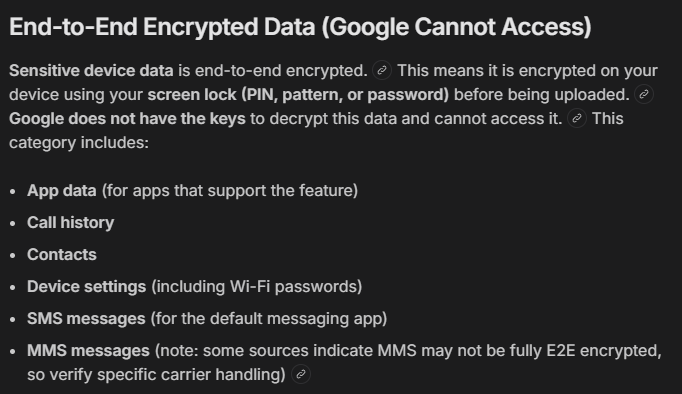
If you want to do it the way I described, you only need an internet connection, you don’t need to enable anything google - the entire flow I described works google-less, as you pass the seed via qr and the rest is foundation servers. The “auto sync data” toggle should update your google backup, but that should only be udeful if you ever plan on doing a full phone recovering via google autobackup, not needed in this instance as mentioned before.
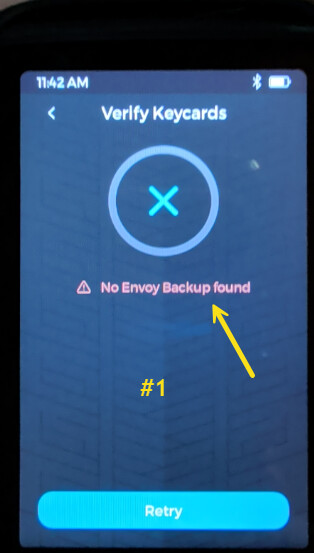
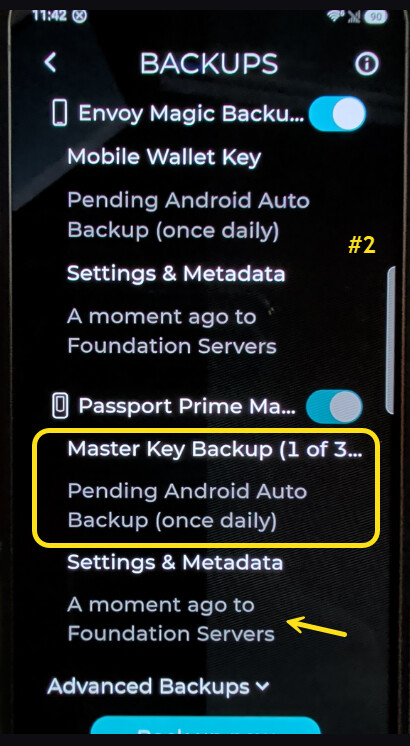
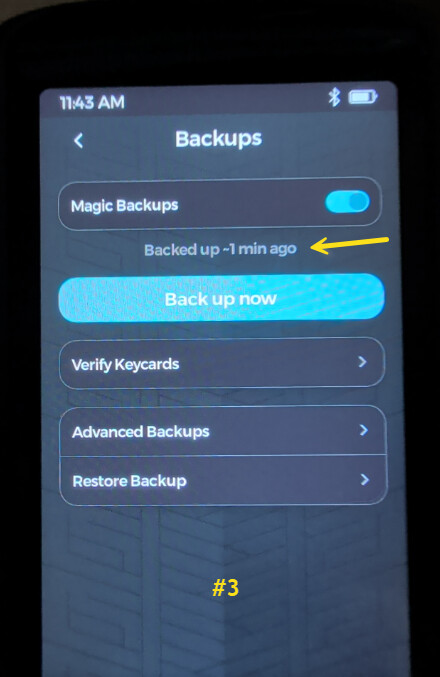
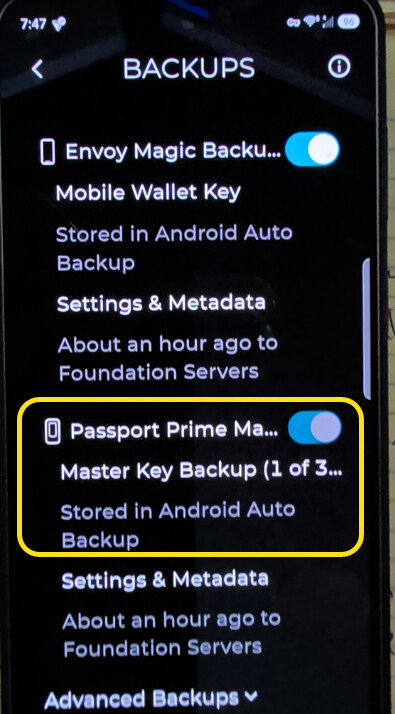
For some reason after following the above it did not work, then I followed you guide in the link above in the other chat and everything now works. I do have a couple of follow up questions regarding the backups. After both my Passport and Prime devices and accompanying wallets appear in Envoy on the new S26 I had an issue verifying the keycards as I received the error “No Envoy Backup Found” (#1), so I pushed a backup in Envoy (#2) and on Prime (#3). Still had the error in verifying the keycards. So I repeated the process to BackUp to Keycards (which overwrote the card) and the verify worked. So the only outstanding backup in limbo is the “Pending Android Auto Backup (once daily)”(#2), Am I able to push this? Where or how do I know it happens? Even if I come back tomorrow It will always say “Pending…”, unlike Prime and Envoy which indicate the time since the last backup?
Glad you got it sorted, and thanks for reporting back.
On the keycard error:
“No Envoy Backup Found” was expected in your case. Because you set the new phone up by re-pairing over QuantumLink (not by a full Magic Backup restore), the new Envoy never held a copy of Prime’s backup, so when Prime checked the Envoy side during keycard verify, there was nothing there.
Your fix was exactly right. Re-running Back Up to Keycards recreated a complete backup set, which is why verify then passed.
On the “Pending Android Auto Backup (once daily)”:
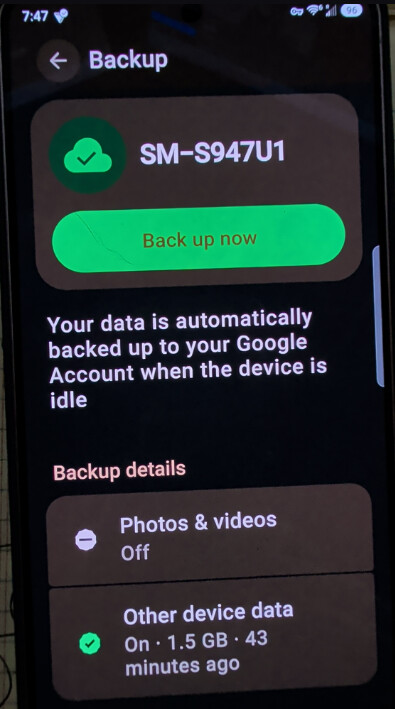
You don’t have to wait for the daily run, you can push it manually:
Settings → Accounts and backup
Under the Google Drive section, tap Back up data
Make sure Back up by Google One (app data) is toggled on
Tap Back up now
Left to its own devices it’s controlled by Android/Google, not Envoy, so it otherwise runs on its own schedule (typically once a day when the phone is idle, charging, and on Wi-Fi), which is why it shows “Pending” with no timestamp until it fires.