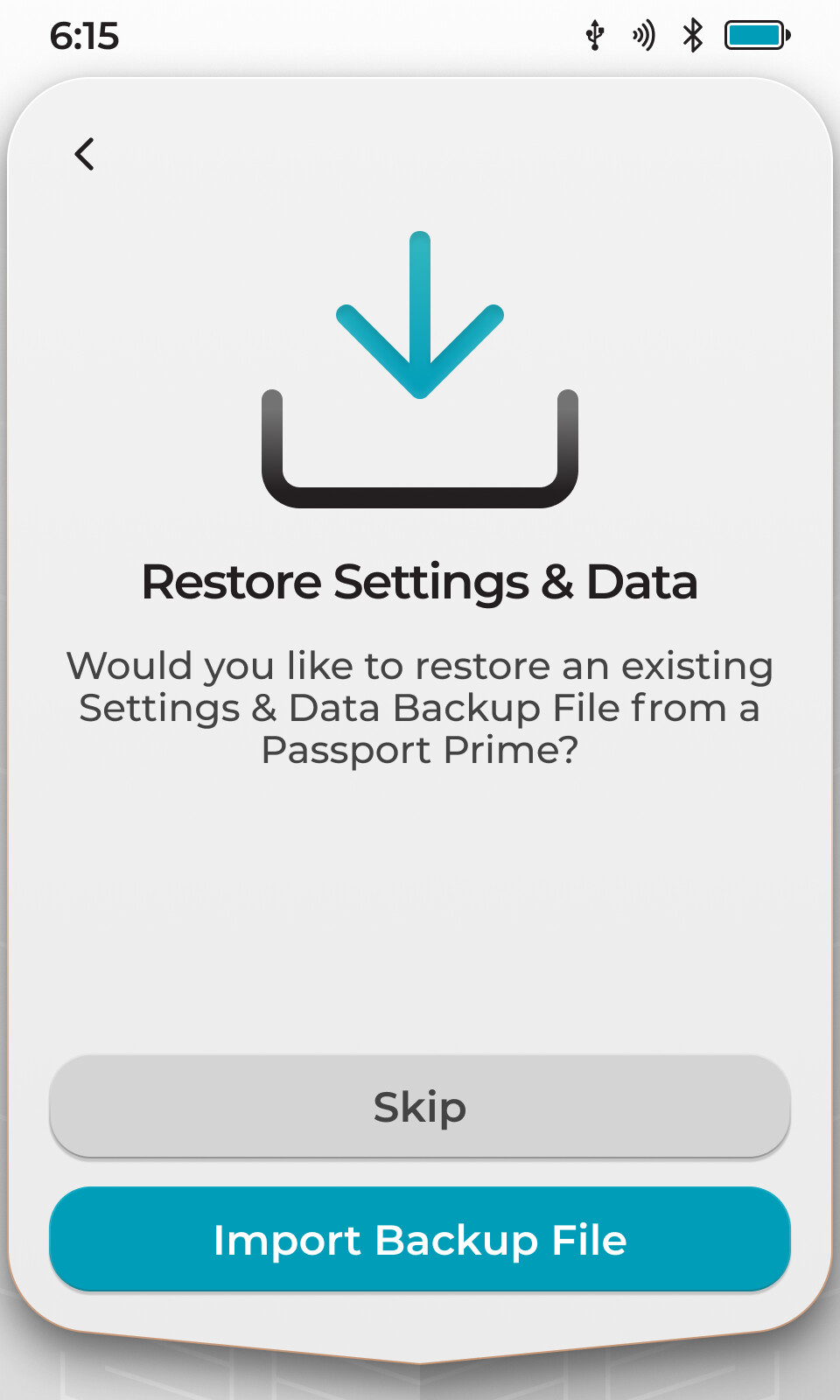
If you’re a magic backup user, then everything apart from files are stored in the encrypted data that is sent to the Foundation server. Soon we plan to add support for file backup as part of the Shield subscription service (free for Early Access customers).
If you’re not a MB user, you’ll need to separately back up your settings + data backup file. It contains all the same data, no files.
Passport Prime recovery is covered in detail here. TLDR - go through onboarding and tap one card and everything is restored.
I want to use Prime Manual Backups, but I still can’t figure out your backup logic. After backing up, a `settings.tar` file (rather than a `.mla` file) was created on the external memory card, but once I perform a factory reset, I can’t find any option in the menu to restore the files.
For a new device, your user manual isn’t sufficient to allow users to perform these operations on their own. I think you need to provide more detailed instructional videos.
I’m just a user waiting on his Prime but according to this you should be given the option to restore settings and data after you complete restoring the master key via your Keycards. Are you not given the option that is shown in the last image?
@Ke_James as mentioned by @SpartanSoul this is covered in the docs. Can you confrim you are copying those exact steps? If so, where in the flow does your experience deviated from the docs listed?
Good catch on the MLA > TAR. I’ll update that imgae.
Yes, I followed the steps in the documentation, but I ran into an issue during the recovery stage — I couldn’t find any option to import the backup file.
Also, I think the documentation could be a bit more specific. For example, it mentions going into Settings for backup, but there are multiple menu paths there. I assumed it was under Advanced options, but I’m not fully sure if that’s correct.
Lastly, just to confirm — has the backup file format already changed from .MLA to .TAR?
Hi @Ke_James I think you’re correct here, but I’ll need to confirm this with the team when they return to work tomorrow. cc @Jack Restoring a backup file as a manual user was one of the features we temporarily removed before shipping so we could meet a deadline. We plan to add this back in ASAP in an upcoming update.
Magic backup restoration is fully functional right now.
And yes, the correct format is .tar and the docs have been updated to reflect that.
For magic users it just happens for you automatically. The settings file is what is stored encrypted on the Foundation server. For manual users, as depicted in the docs, there will be a prompt screen after restoring a master key.
Yes all of it.
Magic backup users don’t need to deal directly with the settings.tar file, its all handled automatically. That of course does not prevent them from creating an additional offline copy manually for extra redundancy should they choose to do so.
We appreciate the questioning too, helps me hone our docs and messaging.
I’d like to focus specifically on the manual (non-Magic) restore flow, since that’s what I’m trying to understand and test.
From what I see, the current documentation doesn’t seem to fully reflect the actual flow anymore. Could you please clarify the up-to-date step-by-step process for manual restore?
In particular:
After restoring a master key, you mentioned there should be a prompt — what exactly should I expect to see?
How is the settings.tar file detected or imported at that stage? (e.g., via SD card, internal storage, or automatic scan?)
What exact menu path or user action triggers the restore of that file?
Right now, I’m not seeing any option to import or apply the backup during the recovery process, which is why I’m unsure if I’m missing a step or if the flow has changed.
Appreciate the help — I’d like to make sure I fully understand the non-Magic recovery path, especially for redundancy purposes.
There is no prompt for the settings restore right now in the live build. This is what I mentioned earlier around it being one of the features we temporarily removed from the built to enable us to push for a shipping deadline.
When it is live, you’ll get the prompt after restoring the master key and it will just open the file picker for you to locate the file on the device or external storage media (if inserted).
Hey @Ke_James - as @qna mentioned this is planned to be implemented in a later release. It will likely work like Envoy’s manual flow - after you enter your seed or scan your seed via QR or however you plan on importing your seed, you will be prompted with the screen below. If you have a file you will be able to just select it in the file picker that will open upon tapping Import Backup File - you should be able to navigate your filesystem here and manually select the file